Why Block Legacy Authentication?
Legacy authentication refers to older sign-in protocols, POP3, IMAP4, SMTP AUTH, and older versions of Exchange ActiveSync, that were built before modern security concepts existed. They use Basic authentication, which sends credentials in plain text and has no concept of multi-factor authentication.
The problem is that even if you've enforced MFA across your tenant, these protocols completely bypass it. An attacker who obtains a user's credentials can authenticate directly via IMAP or POP3 and gain full mailbox access without ever being challenged for a second factor. It's one of the most commonly exploited gaps in Microsoft 365 tenants.
What Gets Blocked
The Conditional Access policy targets the Exchange ActiveSync and Other Clients client app conditions, which covers all of the following:
| Protocol | Used For | Status |
|---|---|---|
| POP3 | Older email clients downloading mail | BLOCKED |
| IMAP4 | Email clients syncing mailboxes | BLOCKED |
| SMTP AUTH | Sending mail via basic auth | BLOCKED |
| Exchange ActiveSync (basic) | Older mobile devices syncing email | BLOCKED |
| Exchange Web Services (basic) | Older apps integrating with Exchange | BLOCKED |
| Autodiscover (basic) | Legacy Outlook auto-configuration | BLOCKED |
| MAPI over HTTP (basic) | Outlook 2013 and earlier | BLOCKED |
| Modern auth (OAuth 2.0) | Current Outlook, Teams, M365 apps | NOT AFFECTED |
Create the Conditional Access Policy
🛡️ Conditional AccessGo to the Entra Admin Centre and open Conditional Access:
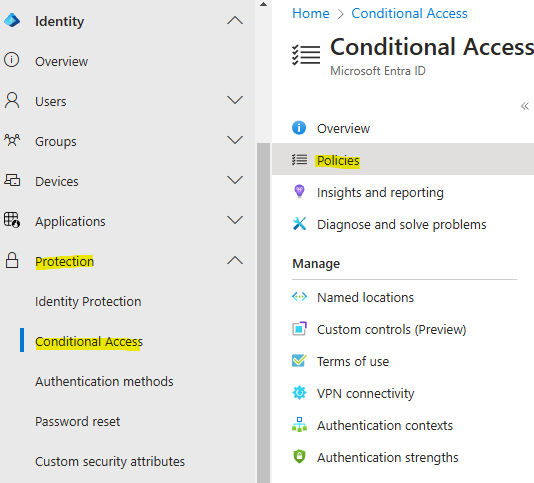
Click New Policy and work through each section below.
-
1
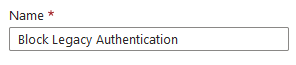
Name the policyGive it a clear, descriptive name, something like Block Legacy Authentication or CA-BLOCK-LegacyAuth.
-
2
Users, Include All usersUnder Users, set Include to All users. This ensures no account can use legacy auth. If you have break-glass admin accounts, add them to the Exclude list, see the callout below.

-
3
Target resources, All cloud appsUnder Target resources, set to All cloud apps. This applies the block across every Microsoft 365 service, Exchange, SharePoint, Teams, and all others.

-
4
Conditions, Client appsUnder Conditions → Client apps, set Configure to Yes, then tick both Exchange ActiveSync clients and Other clients. These two options cover all legacy authentication protocols. Leave Browser and Mobile apps / Desktop clients unticked.

-
5
Grant, Block accessUnder Access controls → Grant, select Block access. This is the control that denies authentication when the conditions above are matched.

-
6
Enable the policySet the policy state to On and click Create. The policy takes effect within a few minutes.

Policy summary
Before You Enable, Break-Glass Accounts
🚨 ImportantTest First with Report-Only Mode
📊 Report-OnlyIf you're not confident there are no legacy auth dependencies in your environment, set the policy to Report-only instead of On when creating it. Report-only mode evaluates the policy against every sign-in and logs whether it would have been blocked, without actually blocking anything.
What to look for in the sign-in logs
- Service accounts, any automation or integration authenticating via legacy protocols
- Shared mailboxes, applications polling shared mailboxes via POP/IMAP
- Printers / MFDs, scan-to-email features often use SMTP AUTH with basic credentials
- Older mobile devices, some ActiveSync clients use basic auth and would lose email sync