You've connected to a Wi-Fi network before, but you can't remember the password and need to share it or connect a new device. Windows stores credentials for every network you've previously connected to, and you can pull them back out in plain text using a single netsh command. No third-party tools required.
When Would You Use This?
Method 1, Single Network Lookup
💻 Command PromptThis is the quickest way to retrieve the password for one specific network you already know the name of.
-
1
Open Command Prompt as AdministratorPress Win + S, type cmd, then right-click Command Prompt and select Run as administrator. Click Yes on the UAC prompt.
-
2
Open the netsh shellType netsh and press Enter. Your prompt will change to netsh>.CMD
netsh
-
3
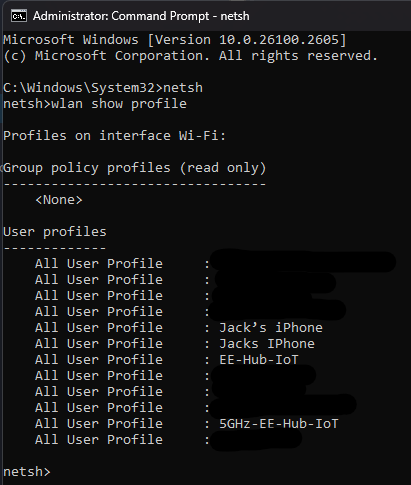
List all saved Wi-Fi profilesRun the command below to see every network your device has connected to and saved credentials for.netsh
<code><span class="cmd-cmd">wlan show profile</span>

<span class="cmd-out"># Example output:
# Profiles on interface Wi-Fi:
#
# Group policy profiles (read only)
# ---------------------------------
#     <None>
#
# User profiles
# -------------
#     All User Profile : HomeNetwork
#     All User Profile : OfficeWifi
#     All User Profile : JackPhone</span></code>
-
4
Retrieve the password for a specific networkReplace Example with the exact SSID name from the list above. The key=clear flag tells netsh to show the password in plain text.netsh
wlan show profile "Example" key=clear

# Look for this section in the output:
#
# Security settings
# -----------------
#     Authentication         : WPA2-Personal
#     Cipher                 : CCMP
#     Security Key           : Present
#     Key Content            : YourPasswordHere
The password appears next to Key Content under the Security settings section. That's it.
Method 2, Dump All Passwords at Once
⚡ One-LinerIf you need to retrieve passwords for every saved network in one go, useful for device audits or before a rebuild, this one-liner loops through all profiles automatically.
Run this directly in an elevated Command Prompt (not inside the netsh shell):
# Paste this entire line into an elevated Command Prompt and press Enter
@for /f tokens^=2delims^=^: %i in ('netsh wlan show profiles') do @set "_ssid=%~i" && @for /f tokens^=2delims^=: %I in ('cmd/v/c netsh wlan show profiles "!_ssid:~1!" key^=clear^|findstr /vi "absent"^|findstr "Key"') do @echo/%i: %I
The output will be a list of every saved network and its stored password, formatted as NetworkName: Password.
PowerShell Alternative
⚙️ PowerShellIf you prefer PowerShell, you can do the same thing with cleaner output. Run this in an elevated PowerShell window:
# Get password for a single network
(netsh wlan show profile name="YourNetworkName" key=clear) |
  Select-String "Key Content"

# Output:
# Key Content : YourPasswordHere# Loop through all profiles and output SSID + password
(netsh wlan show profiles) |
Select-String "\:(.+)$" |
ForEach-Object {
$ssid = $_.Matches.Groups[1].Value.Trim()
$pass = (netsh wlan show profile name="$ssid" key=clear) |
Select-String "Key Content" |
ForEach-Object { ($_ -split ":")[1].Trim() }
[PSCustomObject]@{ SSID = $ssid; Password = $pass }
} | Format-Table -AutoSize
# Output:
# SSID Password
# ---- --------
# HomeNetwork hunter2
# OfficeWifi C0rpP@ssw0rd!Where Windows Stores Wi-Fi Passwords
📁 Storage LocationWindows stores every Wi-Fi profile as an XML file on disk. You can find them at:
Each file is named after the network's profile GUID and contains the full configuration including the encrypted key material. The password is encrypted using Windows DPAPI (Data Protection API) tied to the local machine account, which is why you need to be running as Administrator (or SYSTEM) to decrypt and display it in plain text via netsh.